
Quick Answer
To fix a noindex issue in WordPress, first go to Settings → Reading and make sure Discourage search engines from indexing this site is unchecked. Then check your SEO plugin settings, individual post/page settings, sitemap, robots meta tag, and Google Search Console URL Inspection report. After removing the noindex tag, test the live URL and request indexing in Google Search Console.
Removing noindex does not guarantee instant indexing. It only makes the page eligible for indexing.
Introduction
If your WordPress page is not showing on Google, one possible reason is a noindex issue.
A noindex tag tells search engines not to show a page in search results. This means your page may be live on your website, but Google may still avoid indexing it.
This problem is common on WordPress websites. It can happen because of a WordPress setting, an SEO plugin setting, a page-level robots tag, a staging site setting, or a technical server rule.
The good news is that most noindex issues are fixable. You do not need to be a developer for the basic checks. But you do need to follow the right order. Guessing blindly can make the problem worse.
If you run a WordPress blog or small business website, you should also understand the basics of SEO for WordPress bloggers and small website owners because indexing settings directly affect whether your important pages can appear in Google.
What Does Noindex Mean in WordPress?
Noindex is an instruction for search engines. It tells them not to include a page in search results.
For example, a page may contain this tag in its source code:
<meta name=”robots” content=”noindex”>
This tells search engines that support the rule not to show the page in search results.
In WordPress, noindex can come from different places:
| Source of Noindex | What It Means |
| WordPress Reading setting | The whole site may be discouraged from indexing |
| SEO plugin | A post, page, category, tag, or archive may be set to noindex |
| Page source code | The robots meta tag may contain noindex |
| X-Robots-Tag header | The server may send noindex through HTTP headers |
| Staging setup | A test site setting may still be active on the live site |
| Custom code | Theme or plugin code may add noindex manually |
The mistake beginners make is thinking noindex always comes from one place. It does not. That is why you need to check step by step.
How to Fix Noindex Issue in WordPress
Start with the easiest checks first. Do not edit theme files or server files before checking WordPress and SEO plugin settings.
Step 1: Check WordPress Search Engine Visibility
This is the first setting you should check.
Follow these steps:
- Log in to your WordPress dashboard.
- Go to Settings.
- Click Reading.
- Scroll down to Search Engine Visibility.
- Make sure Discourage search engines from indexing this site is unchecked.
- Click Save Changes.
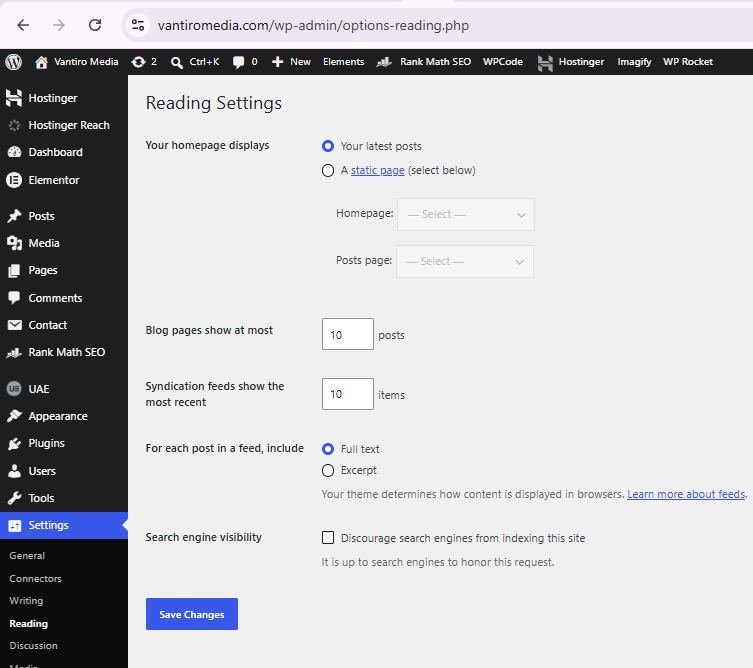
If this option is checked, WordPress can tell search engines not to index your site.
This setting is useful when a website is still under development. But if your website is live and you want Google traffic, this option should not be checked.
Beginner Warning
This setting does not make your site private. People can still open your site if they have the link. It only asks search engines not to index it.
So do not use this option as a security method. It is not for protecting private content.
Step 2: Check the Noindex Setting on the Individual Page
If only one post or page has the issue, the problem may be inside that page’s SEO settings.
Open the affected post or page in WordPress.
If you use Yoast SEO:
- Open the post or page.
- Go to the Yoast SEO panel.
- Open the Advanced section.
- Find the option that asks whether search engines should show this page in search results.
- Set it to Yes.
- Update the page.
If you use Rank Math:
- Open the post or page.
- Open the Rank Math SEO settings.
- Go to the Advanced tab.
- Look for Robots Meta.
- Make sure No Index is not selected.
- Update the page.
If you use another SEO plugin, look for settings such as:
- Robots Meta
- Advanced SEO
- Search engine visibility
- Indexing
- Allow search engines to show this page
This is one of the most common causes of WordPress noindex problems.
Step 3: Check Global SEO Plugin Settings
Sometimes the individual page is fine, but your SEO plugin has a global setting that affects many URLs.
For example, your SEO plugin may be set to noindex:
- All posts
- All pages
- Categories
- Tags
- Author archives
- Date archives
- Media attachment pages
- Product pages
- Custom post types
This can cause a serious indexing problem.
For a normal blog, your important posts and pages should usually be indexable. But some archive pages, thin tag pages, or duplicate pages may not need indexing.
Check your SEO plugin’s global settings carefully.
In Yoast SEO, check content types, taxonomies, and archives.
In Rank Math, check Titles & Meta and the robots settings for posts, pages, categories, tags, and other content types.
Do not randomly change everything to index. First ask: does this page deserve to appear in Google?
If you are new to SEO, this SEO for beginners guide can help you understand how indexing, crawling, content quality, and ranking work together.
Step 4: View Page Source and Search for Noindex
After checking WordPress and SEO plugin settings, check the actual page source.
Follow these steps:
- Open the affected URL in your browser.
- Right-click on the page.
- Click View Page Source.
- Press Ctrl + F on Windows or Command + F on Mac.
- Search for noindex.
If you find this:
<meta name=”robots” content=”noindex”>
or this:
<meta name=”robots” content=”noindex,follow”>
then the page is still sending a noindex instruction.
If you do not find noindex in the source code, the issue may be coming from an HTTP header, caching, server setting, or old Google crawl data.
Step 5: Check Google Search Console URL Inspection
You can use the official Google Search Console URL Inspection tool to check how Google sees the current version of your page.
Follow these steps:
- Open Google Search Console.
- Paste the affected URL in the URL Inspection tool.
- Check the indexing status.
- Look for warnings such as:
- Excluded by noindex tag
- Submitted URL marked noindex
- No: noindex detected in robots meta tag
- After fixing the issue, click Test Live URL.
- If the live test shows the page is indexable, click Request Indexing.
Do not request indexing before removing the noindex tag. That is pointless. Google will still see the noindex instruction.
Also, remember that Google Search Console may show old data until Google crawls the page again. The live test is more useful for checking the current version of the page.
Step 6: Check Your Sitemap
Your sitemap should include URLs you want search engines to discover and index.
Common sitemap URLs are:
yourdomain.com/sitemap.xml
yourdomain.com/sitemap_index.xml
yourdomain.com/post-sitemap.xml
yourdomain.com/page-sitemap.xml
If a page is set to noindex, it usually should not be included in your sitemap.
This is a common mistake: the sitemap tells Google, “Here is an important page,” but the page itself says, “Do not index me.”
That is a mixed signal.
If you want the page indexed:
- Remove the noindex tag.
- Make sure the page is included in the correct sitemap.
- Submit or refresh the sitemap in Google Search Console.
If you do not want the page indexed:
- Keep noindex.
- Remove it from the sitemap.
Step 7: Check Robots.txt Carefully
Robots.txt and noindex are not the same thing.
Robots.txt controls crawling. Noindex controls indexing.
Here is the difference:
| Method | What It Does | Beginner Note |
| Noindex meta tag | Tells search engines not to show a page in results | Used for indexing control |
| X-Robots-Tag header | Sends noindex through HTTP headers | More technical |
| Robots.txt disallow | Blocks crawling | Does not work the same as noindex |
Do not add this to robots.txt and expect it to work:
Noindex: /example-page/
That is not a reliable Google-supported method.
Also, do not block a page in robots.txt if you want Google to see that the noindex tag has been removed. If Google cannot crawl the page, it may not see the updated page properly.
Step 8: Check X-Robots-Tag Header
For technical details, Google explains how robots meta tags and X-Robots-Tag headers work in its official robots meta tag and X-Robots-Tag documentation.
This is more technical.
It may come from:
- Hosting settings
- Server rules
- .htaccess file
- Security plugins
- Staging plugins
- CDN settings
- Custom developer code
If Google Search Console says noindex is detected, but you cannot find noindex in the page source, the X-Robots-Tag header may be the reason.
For beginners, this is where you should stop guessing and ask your hosting support or a developer.
Common Causes of Noindex Issues in WordPress
| Cause | What Happens | Fix |
| WordPress search visibility is enabled | Whole site may be discouraged from indexing | Uncheck it in Settings → Reading |
| SEO plugin noindex setting | One page or post is marked noindex | Change page robots setting to index |
| Global plugin setting | Many posts, pages, or archives are nonindexed | Review content type and taxonomy settings |
| Staging site copied to live site | Live site keeps test-site noindex setting | Remove staging noindex rules |
| Wrong sitemap setup | Nonindexed URLs appear in sitemap | Remove noindex or remove URL from sitemap |
| Custom theme code | Theme adds noindex tag | Ask developer to inspect theme files |
| X-Robots-Tag header | Server sends noindex | Check hosting/server rules |
What Beginners Should Know
Not every noindex tag is bad.
Some pages should not appear in Google.
Examples include:
- Thank-you pages
- Login pages
- Admin pages
- Internal search result pages
- Thin tag pages
- Duplicate archive pages
- Test pages
- Private landing pages
The real question is not, “How do I remove noindex from every page?”
The real question is, “Should this page be indexed?”
If the page is useful, original, public, and important for search traffic, it should usually be indexable.
If the page is thin, private, duplicate, or only useful after a form submission, it may be better to keep it nonindexed.
Safe and Risky Fixes
| Fix | Safe for Beginners? | Notes |
| Uncheck WordPress search visibility | Yes | Safe if the site is ready for Google |
| Change one page from noindex to index | Yes | Safe if the page should be public |
| Check SEO plugin settings | Yes | Read settings carefully |
| Check sitemap | Yes | Make sure indexable URLs are included |
| Edit robots.txt | Medium risk | Wrong rules can block crawling |
| Edit .htaccess | Risky | One mistake can break the site |
| Edit theme files | Risky | Use developer help |
| Delete SEO plugin | Not recommended | This may create more problems |
Do not jump to risky fixes first. Most noindex issues are caused by simple settings.
Common Mistakes Beginners Make
1. Requesting Indexing Too Early
Many users click “Request Indexing” in Google Search Console before fixing the noindex tag.
That does not solve the problem.
First remove the noindex. Then test the live URL. Then request indexing.
2. Confusing Robots.txt With Noindex
Robots.txt is for crawling. Noindex is for indexing.
If you mix them up, you can make the problem harder to fix.
3. Blocking the Page in Robots.txt
If Google cannot crawl the page, it may not see the latest robots meta tag.
This is a serious beginner mistake.
4. Leaving Nonindexed Pages in the Sitemap
If a URL is nonindexed, it usually should not be in your sitemap.
Your sitemap should focus on URLs you actually want search engines to index.
5. Changing All SEO Settings Without Understanding Them
Do not randomly set every page, tag, category, and archive to index.
Some pages should stay nonindexed. Indexing low-value pages can hurt site quality.
6. Expecting Instant Results
Removing noindex does not mean Google will index the page immediately.
Google needs to crawl the page again. After that, Google decides whether the page is worth indexing.
Practical Checklist
Use this checklist before asking for help:
- Check Settings → Reading in WordPress.
- Make sure Discourage search engines from indexing this site is unchecked.
- Open the affected post or page.
- Check SEO plugin robots settings.
- Make sure the page is not set to noindex.
- Check global SEO plugin settings.
- Check posts, pages, categories, tags, and archives.
- View page source and search for “noindex.”
- Check the sitemap.
- Make sure the URL is not blocked in robots.txt.
- Use Google Search Console URL Inspection.
- Test the live URL.
- Request indexing only after fixing noindex.
- Ask hosting support if the issue comes from the X-Robots-Tag header.
When to Ask an Expert
Ask a WordPress developer, SEO expert, or hosting support if:
- Noindex appears even after plugin settings look correct.
- Google Search Console detects noindex but page source does not show it.
- You suspect an X-Robots-Tag header.
- Your .htaccess file has custom rules.
- Your site recently moved from staging to live.
- Many important pages suddenly disappeared from Google.
- You are not comfortable editing server files.
Do not pretend this is always a one-click problem. Sometimes it is simple. Sometimes it is technical.
Limitations
Removing noindex only removes one indexing block.
It does not guarantee:
- Higher rankings
- Instant indexing
- More traffic
- AdSense approval
- First-page results
Google may still choose not to index a page if the content is thin, duplicate, low quality, poorly linked, blocked by other settings, or canonicalized to another URL.
This is why understanding why SEO is important for every website owner matters. Indexing is only the first step. Content quality, internal links, search intent, site structure, and usefulness decide whether the page can actually perform.
The exact time Google takes to re-crawl and index a fixed page is not clearly mentioned by the official source because it can vary by website and URL.
FAQs
What is a noindex issue in WordPress?
A noindex issue means a WordPress page is telling search engines not to show it in search results. This can happen because of WordPress settings, SEO plugin settings, robots meta tags, or server headers.
How do I remove noindex from WordPress?
Go to Settings → Reading and make sure Discourage search engines from indexing this site is unchecked. Then check your SEO plugin settings for the affected post or page and make sure it is set to index.
Why does Google Search Console say submitted URL marked noindex?
It usually means the URL is included in your sitemap, but the page is still sending a noindex instruction. Remove noindex if you want the page indexed, or remove the URL from the sitemap if you do not want it indexed.
Does removing noindex guarantee Google indexing?
No. Removing noindex only makes the page eligible for indexing. Google still needs to crawl the page and decide whether it should be indexed.
Can robots.txt fix a noindex issue?
No. Robots.txt controls crawling, not indexing. Google does not support noindex as a robots.txt rule. Use a robots meta tag or X-Robots-Tag header for noindex control.
Why is my page still not indexed after removing noindex?
Google may not have crawled the page again yet. The page may also have other issues, such as thin content, duplicate content, canonical problems, blocked crawling, or weak internal links.
Should I noindex WordPress category and tag pages?
It depends. Useful category pages can be indexed. Thin or duplicate tag pages may be better noindexed. Do not apply noindex blindly.
Conclusion
A noindex issue in WordPress can block your important pages from appearing on Google. That means your SEO work may not matter until the issue is fixed.
Start with the simple checks. Look at WordPress Reading settings, SEO plugin settings, page-level robots settings, sitemap, page source, and Google Search Console.
Do not edit server files or theme code unless you know what you are doing.
The honest answer is simple: if a page is still marked noindex, Google is being told not to show it. Fix that first. Then improve the page quality, internal links, and content so Google has a real reason to index it.

Mehar Rameez is the CEO of Ranks to Rise and an SEO professional with practical experience in WordPress SEO, Google Search Console, indexing issues, and website growth. On VantiroMedia, he writes simple, step-by-step guides to help bloggers, beginners, and small website owners fix SEO problems, improve their content, and grow organic traffic.
For website-related questions or collaboration inquiries, contact: contact@vantiromedia.com