
Seeing a WordPress page showing noindex in Google Search Console can be confusing, especially when the page is important for your traffic, leads, or blog growth.
You may open Google Search Console and see messages like:
“Excluded by ‘noindex’ tag”
“URL marked ‘noindex’”
“Submitted URL marked ‘noindex’”
“Page is not indexed: noindex detected”
This means Google found an instruction telling it not to include that page in Google Search results.
The problem is not always from Google. Most of the time, the noindex tag comes from WordPress settings, an SEO plugin, a staging plugin, theme code, caching, or an HTTP header added by the server.
In this guide, you will learn what noindex means, why it happens in WordPress, how to find the exact source, and how to fix it safely.
If you want a broader step-by-step guide, you can also read our detailed article on how to fix noindex issues in WordPress.
What Does Noindex Mean in Google Search Console?
Noindex is an instruction that tells search engines not to index a page.
In simple words, Google may still crawl the page, but it should not show that page in Google Search results.
A noindex rule usually appears in one of these forms:
<meta name=”robots” content=”noindex”>
or:
<meta name=”googlebot” content=”noindex”>
It can also be sent through an HTTP header:
X-Robots-Tag: noindex
For important WordPress pages, noindex is usually a problem. For example, your homepage, blog post, service page, product page, or landing page should not be noindexed unless you have a clear reason.
But noindex is not always bad.
When Noindex Is Normal
Not every noindex warning needs fixing.
Some pages should usually stay out of Google, such as:
Login pages
Admin pages
Thank-you pages
Cart and checkout pages
Internal search result pages
Filter pages
Duplicate tag archives
Thin author archives
Private landing pages
Staging or test pages
If Google Search Console shows noindex for these pages, it may be completely fine.
The real issue starts when an important page is noindexed, such as:
A blog post you want to rank
Your homepage
A service page
A product page
A category page with useful content
A location page
A money page that brings leads or sales
Before removing noindex, ask one honest question:
Does this page deserve to be indexed?
This is where beginners often make a bad SEO decision. They try to index every URL. That is not smart SEO. Google does not need every random page on your website. It needs your best, helpful, original pages.
If you are still learning which WordPress pages should be indexed, read this guide on SEO for WordPress bloggers and small website owners.
Quick Diagnosis: Should You Remove Noindex?
Before fixing anything, check whether the page is worth indexing.
Ask these questions:
Does the page help the user?
Is the content original?
Is the page not copied from another URL?
Is it not a thank-you page, checkout page, login page, or private page?
Does the page have a clear search purpose?
Is it internally linked from other useful pages?
Is it included in the sitemap intentionally?
Does the page have enough useful content?
If the answer is yes, remove noindex.
If the page is thin, duplicate, private, or low-value, keeping it noindexed may be the better decision.
Common Reasons a WordPress Page Shows Noindex
A WordPress page can show noindex in Google Search Console for many reasons.
The most common causes are:
WordPress “Discourage search engines” setting is enabled
Yoast SEO page setting is set to noindex
Rank Math robots meta setting is set to noindex
AIOSEO or another SEO plugin has noindex enabled
Global SEO plugin settings are noindexing posts, pages, categories, or tags
The page was copied from a staging site
A maintenance mode plugin added noindex
Theme code added a robots meta tag
Custom code in header.php added noindex
Server header is sending X-Robots-Tag: noindex
A CDN or hosting rule is adding noindex
The sitemap contains URLs that should not be submitted
Google is showing an older crawled version of the page
Now let’s fix each cause properly.
Step 1: Inspect the URL in Google Search Console
Start with Google Search Console.
Go to Google Search Console and open the URL Inspection tool.
Paste the affected URL.
Check the current indexing status.
Click “Test Live URL.”
Check whether the live page is available to Google.
Look for robots meta tag or X-Robots-Tag details if available.
![[Screenshot Placeholder: Google Search Console URL Inspection tool with affected WordPress URL]](https://vantiromedia.com/wp-content/uploads/2026/06/Capture-3.webp)
This step matters because Google Search Console may show the last crawled version of the page. If you already removed noindex, the report may still show old data until Google crawls the page again.
The live test shows what Google can see right now.
If the live test still detects noindex, the problem is still active.
If the live test says the page is indexable, then the issue may already be fixed, but Google has not updated the report yet.
If you are new to crawling, indexing, and ranking, this SEO for beginners guide to rank a website on Google will help you understand the bigger picture.
Step 2: Check WordPress Reading Settings
This is the first WordPress setting beginners should check.
Go to:
WordPress Dashboard > Settings > Reading
Now find this option:
“Discourage search engines from indexing this site”
If this box is checked, WordPress can tell search engines not to index your site.
Uncheck it.
Click Save Changes.
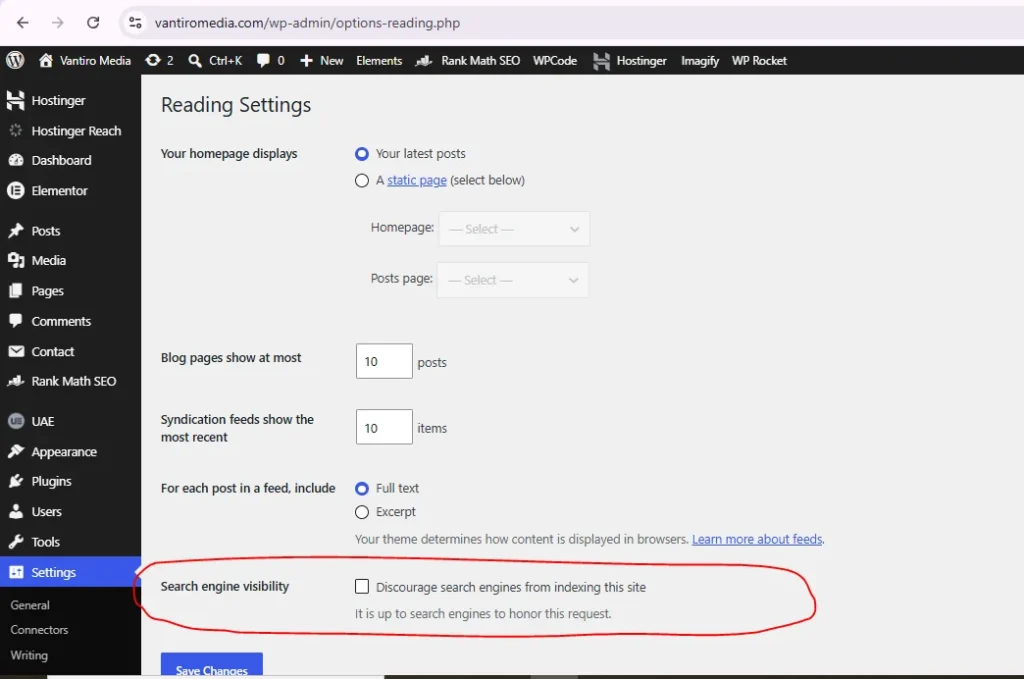
This setting is often enabled when a website is under development. The problem happens when the site goes live and the setting is not turned off.
After unchecking it, clear your website cache and test the URL again in Google Search Console.
Step 3: Check Noindex Setting in Yoast SEO
If you use Yoast SEO, the noindex issue may come from page-level settings.
Open the affected post or page in WordPress.
Scroll to the Yoast SEO box.
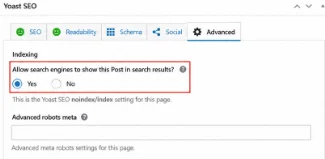
Open the Advanced tab.
Find this option:
“Allow search engines to show this Post/Page in search results?”
Set it to:
Yes
Then update the page.
Yoast SEO Advanced tab showing index/noindex option
Also check Yoast global settings.
Go to:
Yoast SEO > Settings > Content Types
Check posts and pages.
For normal blog posts and important pages, they should usually be allowed to appear in search results.
Then check:
Yoast SEO > Settings > Categories & Tags
Noindexing tag archives can be fine if those pages are thin or duplicate. But do not noindex useful category pages without checking their value.
Step 4: Check Noindex Setting in Rank Math
If you use Rank Math, open the affected page or post.
Open the Rank Math panel.
Go to the Advanced tab.
Look for Robots Meta settings.
Make sure “No Index” is not selected.
For an important page, select:
Index
Then update the page.
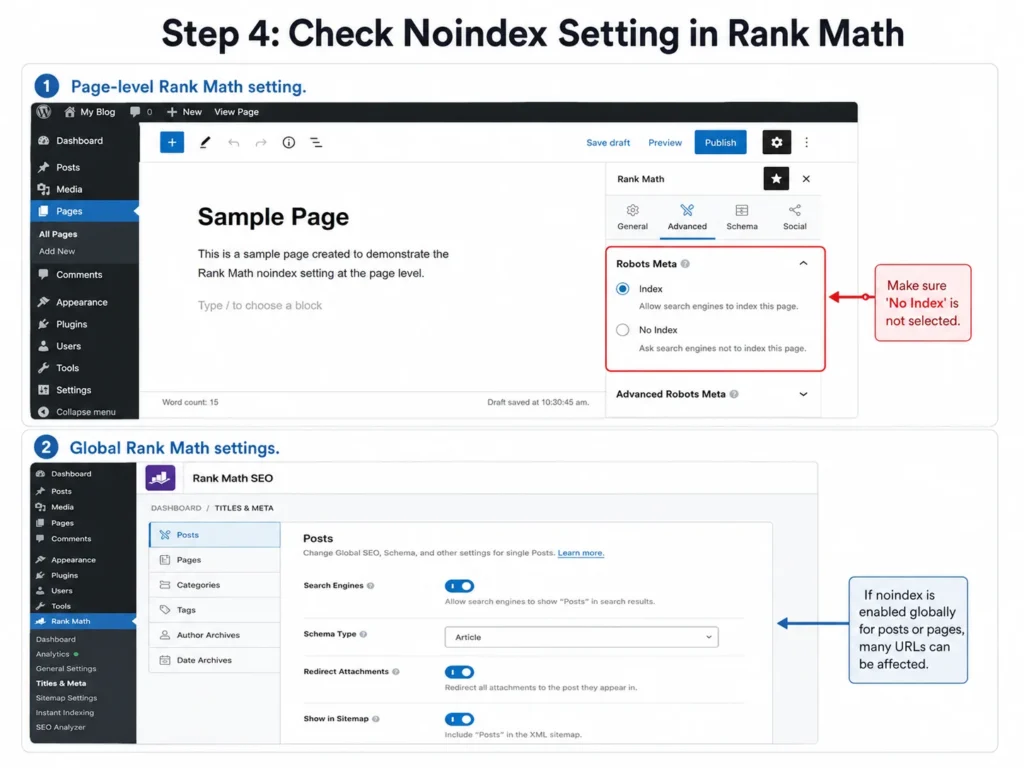
Also check global Rank Math settings:
Rank Math > Titles & Meta
Check these sections:
Posts
Pages
Categories
Tags
Author archives
Date archives
If noindex is enabled globally for pages or posts, many URLs can be affected at the same time.
Step 5: Check AIOSEO or Other SEO Plugins
If you use All in One SEO or another SEO plugin, check the page-level robots settings.
Look for settings like:
Show in search results
Robots meta
Noindex
Advanced SEO
Search appearance
Disable noindex for important pages.
Also check global settings because some SEO plugins allow you to noindex entire post types, taxonomies, or archive pages.
One serious warning: do not use multiple SEO plugins at the same time.
Do not run Yoast SEO and Rank Math together. Do not run AIOSEO and Yoast together. Multiple SEO plugins can create duplicate meta tags, conflicting robots rules, and indexing problems.
Step 6: View Page Source and Search for Noindex
After changing plugin settings, check the actual page source.
Open the affected URL in your browser.
Right-click on the page.
Click “View Page Source.”
Now search for:
noindex
Use Ctrl + F on Windows or Command + F on Mac.
If you see this:
<meta name=”robots” content=”noindex”>
or this:
<meta name=”googlebot” content=”noindex”>
the page is still sending a noindex instruction.
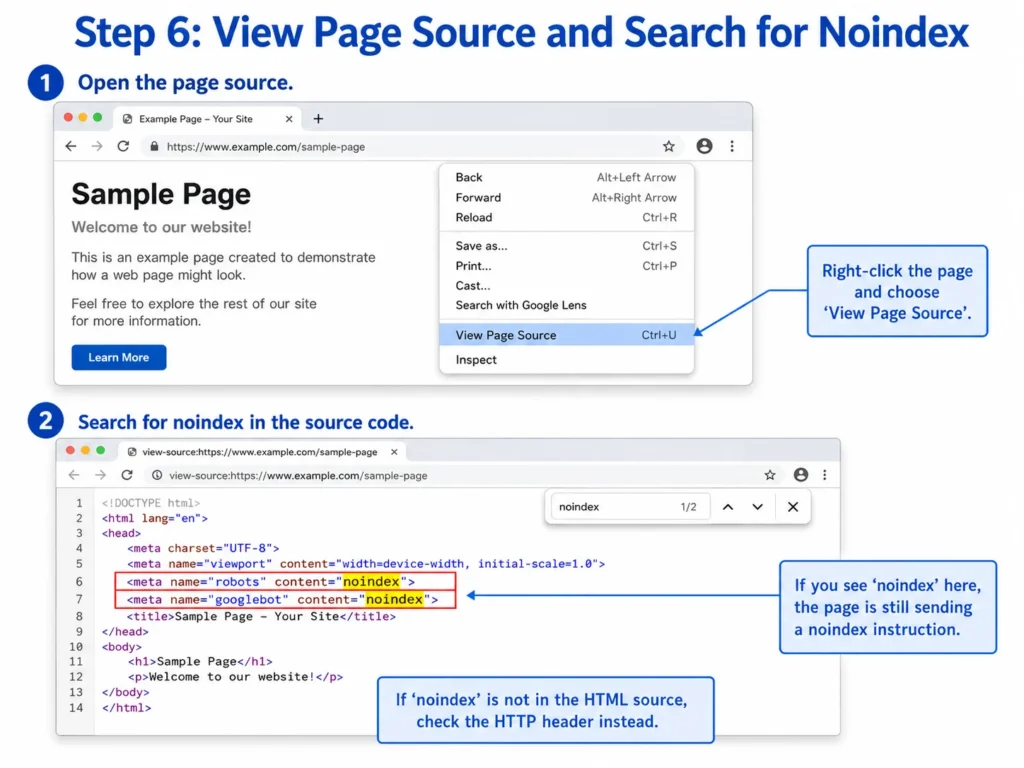
If you do not see noindex in the HTML source, the issue may be coming from an HTTP header instead.
Step 7: Check X-Robots-Tag HTTP Header
Some noindex rules do not appear in the page source.
They are sent from the server through an HTTP header.
This is called:
X-Robots-Tag: noindex
This can happen because of:
Hosting settings
Server configuration
Security plugin
CDN rule
.htaccess rule
Nginx configuration
Developer-added header
PDF or file indexing rule
To check this, use an HTTP header checker tool or ask your hosting support to check whether the affected URL returns:
X-Robots-Tag: noindex
If it does, changing Yoast, Rank Math, or WordPress settings will not be enough. You must remove the noindex header from the server, CDN, or hosting configuration.
Step 8: Clear WordPress Cache and CDN Cache
Caching can make noindex issues confusing.
You may remove noindex from WordPress, but the cached version of the page may still show the old noindex tag.
Clear cache from:
WordPress caching plugin
Hosting cache
CDN cache
Browser cache
Common tools that may need clearing include:
LiteSpeed Cache
WP Rocket
W3 Total Cache
SiteGround Optimizer
Cloudflare
Hostinger cache
Bluehost cache
After clearing cache, open the page in an incognito window and check the page source again.
If noindex is gone from the live page, go back to Google Search Console and run the live URL test.
Step 9: Check Maintenance Mode and Staging Plugins
Many coming soon, maintenance, and staging plugins add noindex intentionally.
That is normal when the site is not ready.
But if your website is already live, these plugins can accidentally keep important pages out of Google.
Check plugins such as:
Coming soon plugins
Maintenance mode plugins
Under construction plugins
Staging plugins
Password protection plugins
Membership plugins
If the page should be public, disable noindex or deactivate the plugin if it is no longer needed.
Step 10: Check Theme Code or Custom Header Scripts
Sometimes the noindex tag is hardcoded into the theme.
Check these areas:
header.php
functions.php
Theme settings
Child theme files
Custom SEO code
Code snippets plugin
Header/footer scripts plugin
Search for:
noindex
If you find a custom robots meta tag, remove it carefully.
Do not edit theme files directly if you do not understand PHP. A small mistake can break your website. Use a child theme or ask a developer.
Step 11: Check Your XML Sitemap
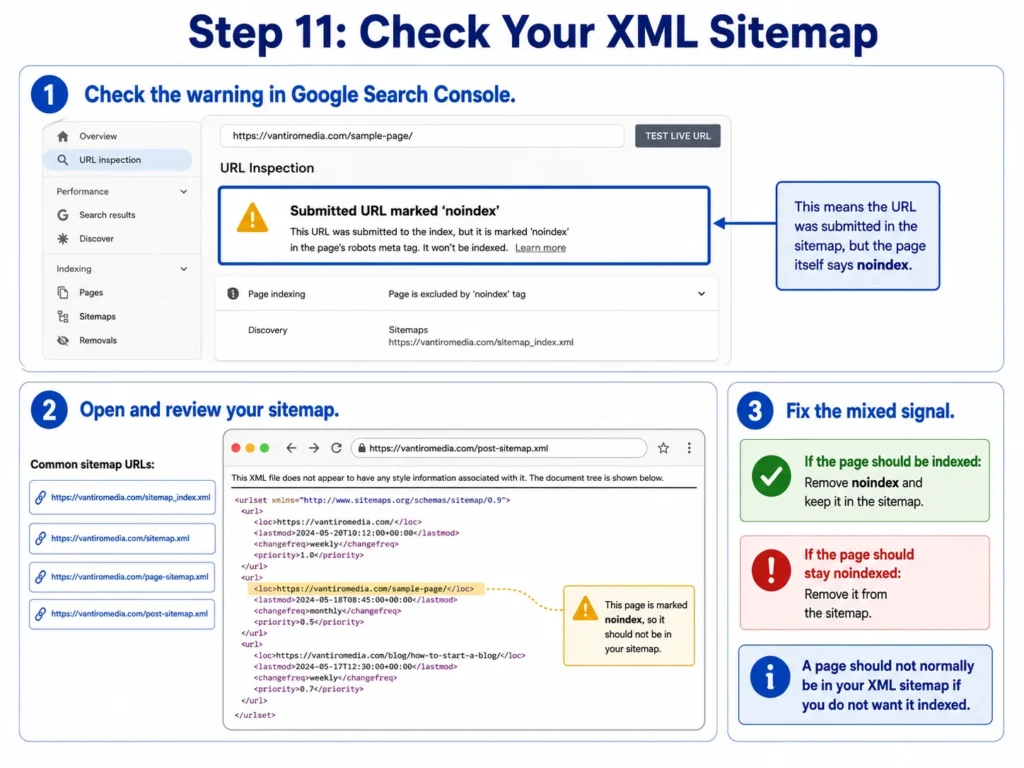
If Google Search Console says:
“Submitted URL marked ‘noindex’”
it usually means the page was submitted through your sitemap, but the page itself says noindex.
That is a mixed signal.
A page should not normally be in your XML sitemap if you do not want it indexed.
Check your sitemap. Common sitemap URLs are:
https://vantiromedia.com/sitemap_index.xml
https://vantiromedia.com/sitemap.xml
https://vantiromedia.com/page-sitemap.xml
https://vantiromedia.com/post-sitemap.xml
If the affected page is important, remove noindex and keep it in the sitemap.
If the page should not be indexed, keep noindex and remove it from the sitemap.
After changing sitemap settings, resubmit the sitemap in Google Search Console.
Step 12: Check Robots.txt Carefully
Robots.txt and noindex are not the same thing.
Robots.txt controls crawling.
Noindex controls indexing.
Do not rely on robots.txt to remove a page from Google Search.
Also, do not block an important page in robots.txt if you want Google to crawl it and see that noindex has been removed.
For most WordPress sites, your robots.txt should not block important pages, posts, CSS, JavaScript, or sitemap URLs.
A basic WordPress robots.txt often looks like this:
User-agent: *
Disallow: /wp-admin/
Allow: /wp-admin/admin-ajax.php
Sitemap: https://example.com/sitemap_index.xml
Replace the sitemap URL with your real sitemap URL.
Step 13: Check the Canonical Tag
Sometimes noindex is not the only issue.
Your page may also have a wrong canonical tag.
A canonical tag tells Google which URL is the preferred version of a page.
Check the source code for:
<link rel=”canonical” href=”https://vantiromedia.com/your-page/”>
For a normal page you want indexed, the canonical should usually point to itself.
Bad example:
<link rel=”canonical” href=”https://vantiromedia.com/another-page/”>
Good example:
<link rel=”canonical” href=”https://vantiromedia.com/current-page/”>
If the canonical points to another URL, Google may choose that other page instead.
Fix the canonical tag inside your SEO plugin.
Step 14: Request Indexing After Fixing Noindex
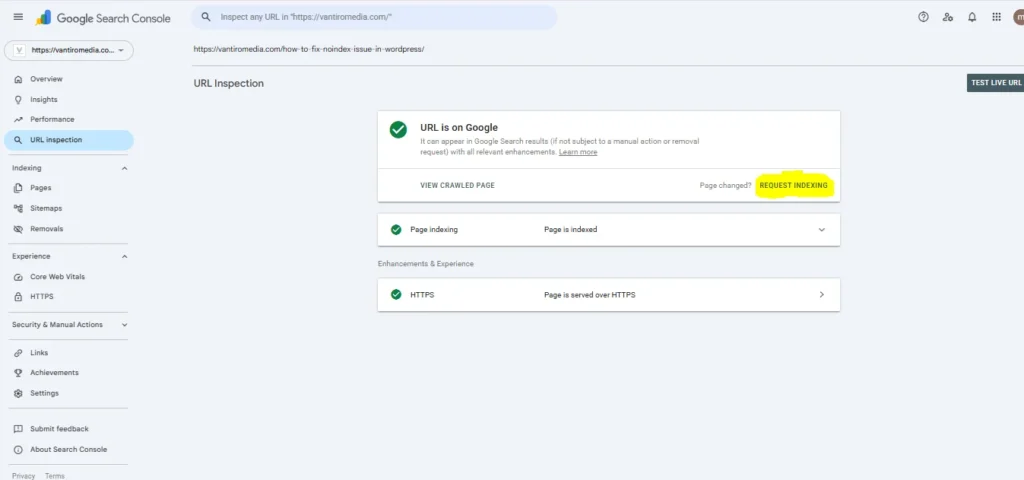
After you remove the noindex tag, go back to Google Search Console.
Open URL Inspection.
Paste the affected URL.
Click “Test Live URL.”
If Google says the page is available to Google, click:
“Request Indexing”
Do not request indexing before fixing the problem. That wastes time.
Also, do not keep requesting indexing again and again. First fix the source, test the live URL, then request indexing once.
How Long Does It Take Google to Update the Status?
There is no fixed time.
Google needs to recrawl the page before Search Console updates the status. Sometimes it updates quickly. Sometimes it can take days or longer.
You can improve discovery by:
Removing noindex properly
Adding the page to your XML sitemap
Internally linking to the page
Making sure the page returns status code 200
Avoiding robots.txt blocks
Requesting indexing in URL Inspection
Improving the content if it is thin or outdated
But removing noindex does not guarantee ranking.
It only makes the page eligible for indexing.
Ranking depends on content quality, relevance, site structure, user value, internal links, competition, and other signals.
To understand why indexing matters for long-term organic growth, read this guide on why SEO is important for every website owner.
Why the Page Still May Not Index After Removing Noindex
If noindex is removed but the page still does not index, the problem may be different.
Common reasons include:
Thin content
Duplicate content
Weak internal linking
Poor page quality
Canonical tag pointing to another URL
Crawled but currently not indexed
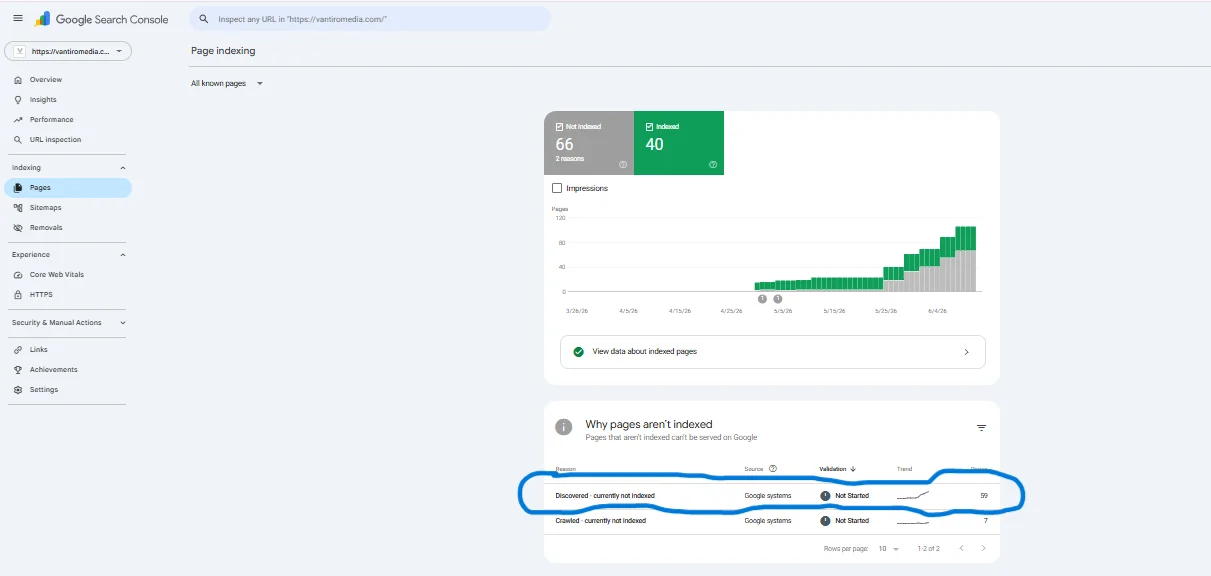
Discovered but currently not indexed
Soft 404
Redirect issue
Server error
Poor page experience
Low site quality signals
This is where many site owners get stuck. They remove noindex and expect instant ranking. That is not how SEO works.
Noindex is a technical block. Once you remove it, Google still decides whether the page is useful enough to index and show.
Beginner-Friendly Noindex Fix Checklist
Use this checklist when a WordPress page is showing noindex in Google Search Console:
Open the affected URL in Google Search Console.
Run URL Inspection.
Click Test Live URL.
Check WordPress Settings > Reading.
Make sure “Discourage search engines” is unchecked.
Check Yoast, Rank Math, AIOSEO, or your SEO plugin.
Remove noindex from the affected page.
Check global SEO plugin settings.
View page source and search for “noindex.”
Check HTTP headers for X-Robots-Tag.
Clear plugin, hosting, CDN, and browser cache.
Check maintenance or staging plugins.
Check custom theme code.
Check sitemap settings.
Make sure noindexed pages are not submitted in the sitemap.
Check robots.txt.
Check the canonical tag.
Run a live test again.
Request indexing.
Monitor the Page Indexing report.
Example: Fixing Noindex in Yoast SEO
Let’s say your blog post is not appearing in Google.
Google Search Console shows:
“Excluded by ‘noindex’ tag”
You open the post in WordPress and check Yoast SEO.
In the Advanced tab, you see:
“Allow search engines to show this Post in search results? No”
That is the problem.
Change it to:
“Yes”
Then update the post.
Clear cache.
Open the page source and confirm that noindex is gone.
Then go to Google Search Console, run a live test, and request indexing.
Example: Fixing Noindex in Rank Math
Let’s say your service page shows this message:
“Submitted URL marked ‘noindex’”
You open the page and check Rank Math Advanced settings.
You see that “No Index” is selected.
Uncheck “No Index” and select “Index.”
Update the page.
Then check Rank Math global settings to make sure pages are not globally set to noindex.
Clear cache, test the live URL, and request indexing.
Example: Noindex Caused by WordPress Reading Settings
A beginner launches a new WordPress website but forgets to uncheck:
“Discourage search engines from indexing this site”
Later, Google Search Console shows noindex issues across many pages.
The fix is simple:
Go to Settings > Reading.
Uncheck the option.
Save changes.
Clear all cache.
Inspect important URLs in Google Search Console.
This is one of the most common WordPress indexing mistakes.
What Not to Do
Do not blindly install another SEO plugin.
Do not submit the same URL again and again without fixing noindex.
Do not delete the page unless you are sure it is useless.
Do not block the page in robots.txt if you want Google to see the updated indexing rule.
Do not keep noindexed URLs inside the sitemap without a clear reason.
Do not assume Google Search Console is wrong before checking the live URL.
Do not index thin, duplicate, or low-value pages just because they exist.
Do not use multiple SEO plugins at the same time.
Do not ignore canonical tags.
Should You Noindex Tags and Categories in WordPress?
It depends.
For many beginner blogs, tag pages are thin and messy. They often create duplicate archive pages with little value. In that case, noindexing tag archives can be a good decision.
Categories are different.
A useful category page can help users find related posts. If your category pages have helpful descriptions, proper internal links, and enough useful content, they may be worth indexing.
Simple rule:
Index useful archive pages.
Noindex thin or duplicate archive pages.
Do not make this decision blindly. Check whether the page helps real users.
Should You Noindex Author Archives?
If your WordPress site has only one author, author archives often duplicate the blog page. In that case, noindexing author archives is usually fine.
If your site has multiple real authors with strong profiles, author archive pages can be useful.
Again, the decision should be based on user value.
Should You Noindex Search Results Pages?
Yes, in most cases, internal search results pages should not be indexed.
WordPress search result pages can create many low-value URLs. These pages are usually not strong search landing pages.
Most SEO plugins noindex internal search pages by default or provide an option to do it.
That is normal.
Noindex and SEO: The Bigger Picture
Fixing a noindex issue is important, but it is only one part of SEO.
A page also needs:
Helpful content
Clear search intent
Strong title and headings
Good internal links
Correct canonical tag
Clean sitemap inclusion
Fast loading experience
Mobile-friendly layout
Useful examples or screenshots
A clear reason for Google to index it
This is why technical SEO and content quality should work together. A technically indexable page with weak content still may not perform.
If you are deciding whether to invest in SEO or paid traffic, this comparison of SEO vs Google Ads explains when each option makes sense.
FAQ
Why is my WordPress page showing noindex in Google Search Console?
Your WordPress page is showing noindex because Google found a rule telling it not to index the page. This can come from WordPress Reading settings, an SEO plugin like Yoast or Rank Math, theme code, a maintenance plugin, caching, CDN settings, or an X-Robots-Tag HTTP header.
How do I remove noindex from a WordPress page?
Open the page in WordPress and check your SEO plugin’s advanced settings. Make sure the page is set to index. Also go to Settings > Reading and confirm that “Discourage search engines from indexing this site” is unchecked. After that, clear cache and test the URL in Google Search Console.
Why does Google Search Console still show noindex after I fixed it?
Google Search Console may still show the older crawled version until Google recrawls the page. Use URL Inspection and click Test Live URL. If the live test shows the page is indexable, request indexing and wait for Google to update the report.
Is noindex bad for SEO?
Noindex is bad only when it is applied to important pages that should appear in Google Search. It is useful for private, duplicate, thin, or low-value pages that should not be indexed.
Should I remove noindex from every WordPress page?
No. You should only remove noindex from pages that are useful, original, public, and worth showing in Google Search. Some pages, such as checkout, login, search results, and thank-you pages, usually should not be indexed.
Can robots.txt fix a noindex issue?
No. Robots.txt and noindex are different. Robots.txt controls crawling access, while noindex controls whether a page should appear in search results. If you want Google to see that the noindex has been removed, do not block the page with robots.txt.
Should noindexed pages be in my sitemap?
Usually, no. If a page is intentionally noindexed, it should usually not be submitted in your XML sitemap. Your sitemap should focus on important URLs that you want Google to crawl and index.
Conclusion
A WordPress page showing noindex in Google Search Console is usually fixable, but guessing will waste your time.
First, confirm the issue in Google Search Console.
Then find the real source of noindex.
Check WordPress Reading settings, SEO plugin settings, page source, HTTP headers, sitemap, robots.txt, cache, maintenance plugins, theme code, and canonical tags.
If the page is useful and should appear in Google Search, remove noindex, clear cache, test the live URL, and request indexing.
If the page is thin, duplicate, private, or low-value, keeping it noindexed may be the smarter SEO decision.
The goal is not to index every WordPress URL.
The goal is to make sure your best pages are crawlable, indexable, useful, and worth showing in Google Search.

Mehar Rameez is the CEO of Ranks to Rise and an SEO professional with practical experience in WordPress SEO, Google Search Console, indexing issues, and website growth. On VantiroMedia, he writes simple, step-by-step guides to help bloggers, beginners, and small website owners fix SEO problems, improve their content, and grow organic traffic.
For website-related questions or collaboration inquiries, contact: contact@vantiromedia.com